
Before logging into Eyesight on your Android device you will need to make sure the device is supported. Please make sure your device is using Android Version 8 or newer. Also, Android is supported on many phones by a variety of manufacturers. Due to this, your phone may look different to the screenshots below and in this Help Centre.
Installing Eyesight
Firstly, we need to install Eyesight on your Android device. To do this please follow the steps below:
- OPEN the Google Play Store and search for "Pinkerton Eyesight".
- Alternatively, the following link will take you to the app directly in the Play Store: Pinkerton Eyesight on Play Store.
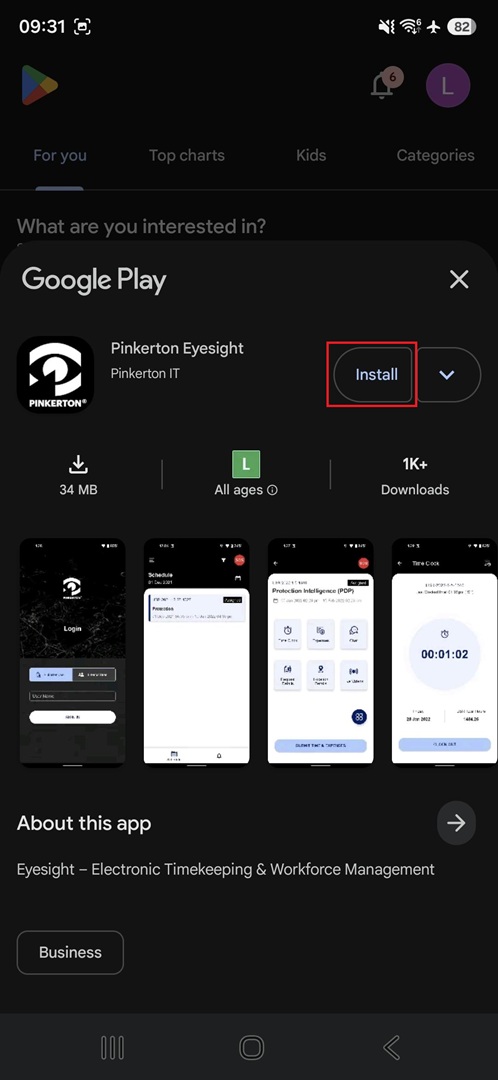
- Alternatively, the following link will take you to the app directly in the Play Store: Pinkerton Eyesight on Play Store.
- Click on "Install".
Setting Up Eyesight
- Once installed, open the app and login.
- Once logged in for the first time you will be asked to accept the ‘Terms of Service’ scroll down and mark the box and then ‘Continue’.
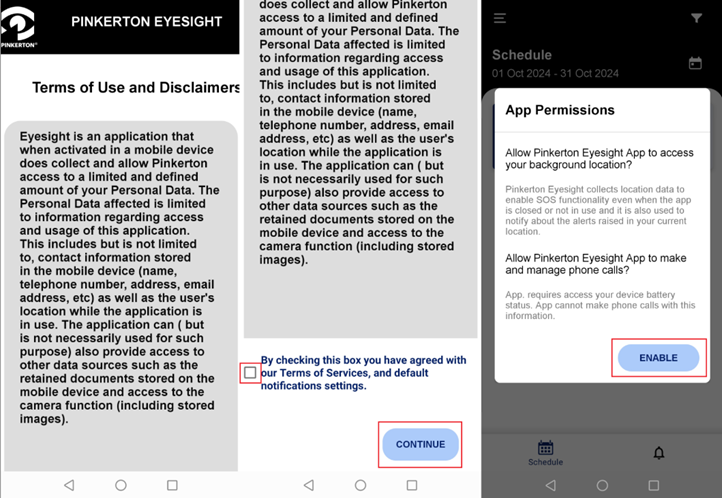
- When asked for permissions to access Location, select any of the options (will be set up later)
- ALLOW permissions to make phone calls

- When prompted to enable access to the location, choose 'ENABLE'
- When the Settings page come up, select 'Allow all the time' and 'Use precise location' for location

- All done! The app is now set up and you can start using it!
Please contact your Operations Manager/Regional Operations Manager for assignment questions.
You can also submit a ticket in the top right of this screen to contact the support team with a technical issue.
Please provide all the relevant information and any screenshots are appreciated.
Was this article helpful?
That’s Great!
Thank you for your feedback
Sorry! We couldn't be helpful
Thank you for your feedback
Feedback sent
We appreciate your effort and will try to fix the article