
Requesting Paid Time Off (PTO) in the Eyesight App
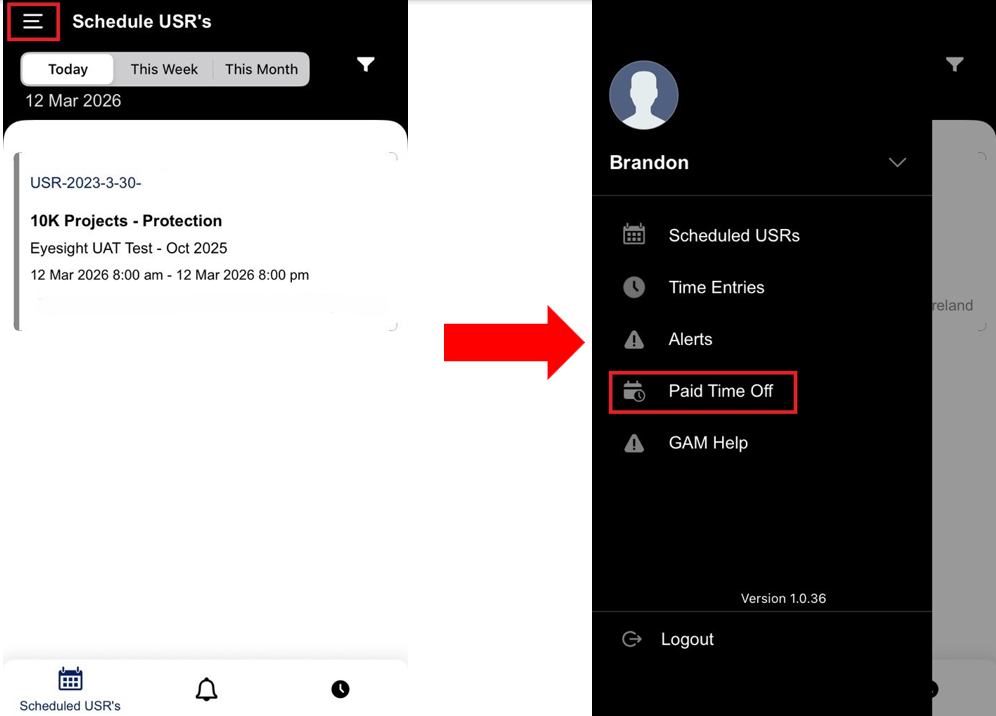
1. Open the Eyesight app and navigate to the “Schedule USRs” page.
2. In the top-left corner, select the three horizontal lines (menu).
3. Click “Paid Time Off.”
Creating a New PTO Request
1. On the Paid Time Off page, you will see a list of your existing requests.
2. Click “Request New.”
3. Complete the request form by entering the following details:
Select the PTO Type:
- BRV – Bereavement
- HNS – Holiday Not Worked
- JDS – Jury Duty
- PER – Personal
- SCK – General Sick Leave
- VAC – Vacation
- NL-TRV – Netherlands Travel (used by employees in the Netherlands)
Enter the following information:
- Date of the request
- Duration (hours and minutes)
- Description (optional but recommended)
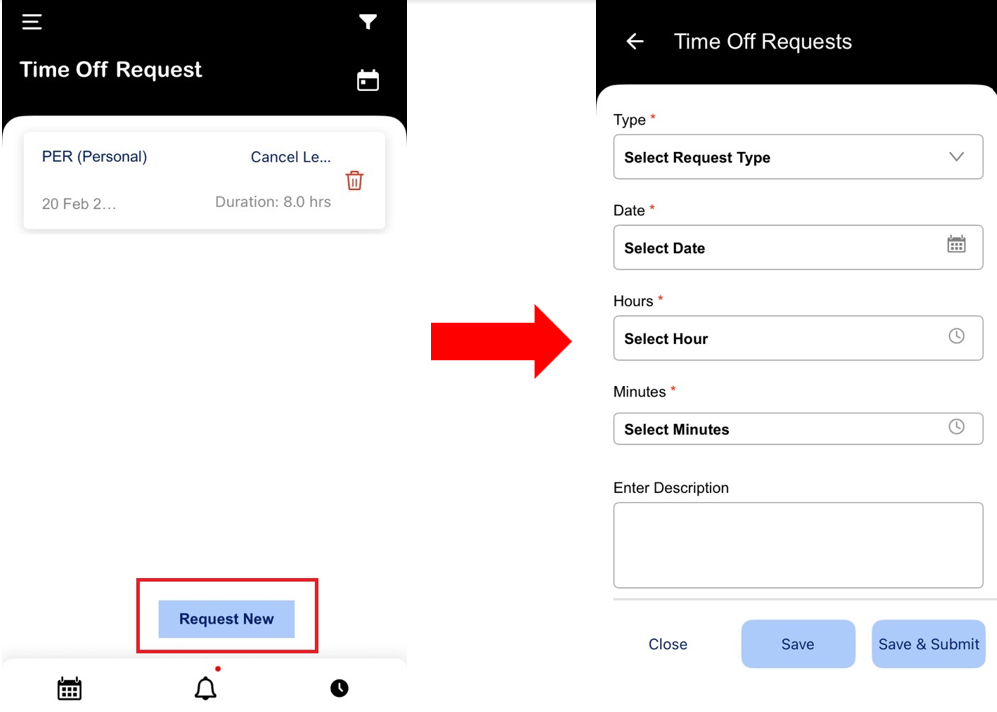
Once all fields are complete, click “Save and Submit.” Your request will then be sent to your manager for approval.
FAQ
Q: Can I edit my PTO request after submitting it?
A: Yes. Follow these steps:
- Go to the Paid Time Off section.
- Find the request you want to change.
- Select it and update the necessary details.
Important:
- Requests cannot be edited once they have been approved.
- If a request has already been approved, contact your manager, who will submit a support ticket to have the change made.
Was this article helpful?
That’s Great!
Thank you for your feedback
Sorry! We couldn't be helpful
Thank you for your feedback
Feedback sent
We appreciate your effort and will try to fix the article